 Writeboard
Sign in
Start free
Writeboard
Sign in
Start free
Guide
Move from BitPaper in four steps
Every whiteboard exports a PDF, and Writeboard imports a PDF as real pages that sit under the ink. So a move is an export, an import, and a new chapter. About five minutes per student.
Updated 11 September 2026. Every screen shown is the real product.
The short answer
Export a paper from BitPaper as a PDF. In Writeboard, add the student and a book, open it, Insert, Import a PDF as pages, tick the pages. Write over them. Tap Chapter next lesson.
Step by step
- Export a paper from BitPaper
Open the paper, use its Export to PDF (BitPaper lists "Create a handy print out by exporting your work to PDF" among its features). You keep everything you made there. Source: BitPaper's own pages, checked 2 September 2026.
- Create the student in Writeboard
Add the student (a first name is enough) and a book named for the topic. Invite them with a link or a six-character code when you are ready.
- Import the PDF as pages
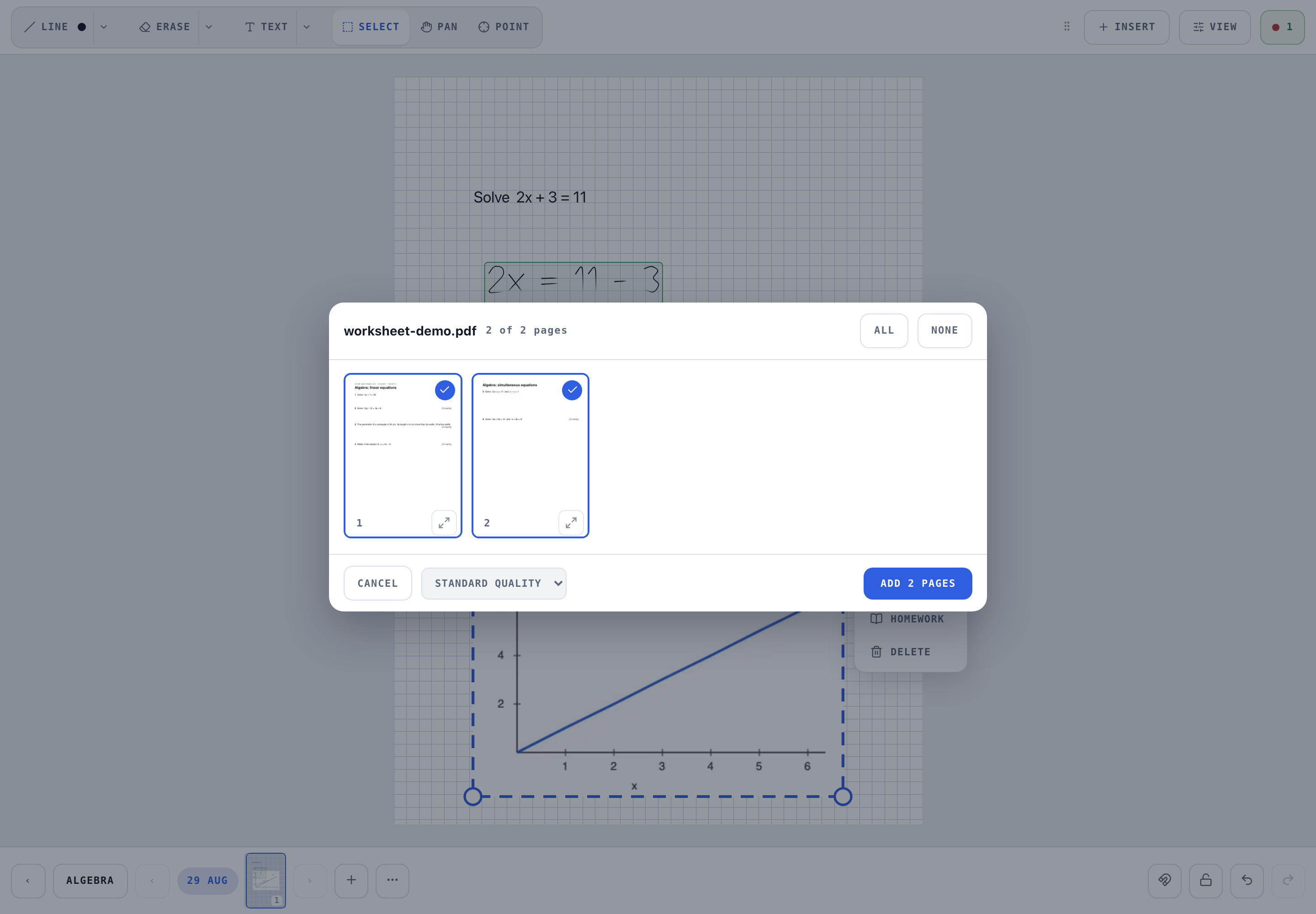
Open the book. Insert, then Import a PDF as pages. The preview shows every page; tick the ones you want. They become pages in the current chapter with the old page fixed under your new writing.
- Carry on where you were
Tap Chapter at the start of the next lesson and the date names it. The old notes stay under the ink; the new lesson goes on top.
What survives the move
| Survives | Does not |
|---|---|
| Everything visible on the page, as a picture under the ink | Individual strokes as editable ink |
| Page order, one PDF page per Writeboard page | BitPaper's links, chat and call history |
| Your own new ink, homework and marks from the first lesson here | Anything not on the exported pages |
Source for the export step: www.bitpaper.io/features, checked 2 September 2026. If BitPaper has changed its export since, tell us.
Questions tutors ask
Will my BitPaper handwriting import as ink?
No. It arrives as the PDF you exported: a picture of the page, under the ink layer. You can write over it but not erase the old strokes individually. That is how every whiteboard-to-whiteboard move works; nobody exports strokes.
How many pages can I import at once?
A whole paper at once; the preview lets you tick the pages you want, so a 40-page export can become the 12 pages that matter.
Can my student keep using BitPaper meanwhile?
Yes. Nothing about the move affects the old tool. Most tutors run the last lesson there and the next one here.
Does it cost anything?
No. The free plan covers two students, three books each, with 500 pages a book and PDF import. £6 a month after that.