 Writeboard
Sign in
Start free
Writeboard
Sign in
Start free
Guide
How to tutor online with an iPad
The set-up that works for me after a few hundred online lessons: an iPad with a pencil for the whiteboard, a phone for the call, and a board that behaves like paper. Ten minutes to set up, then it is the same every lesson.
Updated 11 September 2026. Written by a working tutor from his own lessons; every screen shown is the real product.
The short answer
Use the iPad only for writing. Run the call on a second device. Choose a whiteboard with fixed pages and palm rejection, set a bare finger to pan, lock the view once the lesson starts, and set the homework on the page before you hang up. That is the whole method.
Step by step
- Get the iPad and the pencil
Any iPad that takes an Apple Pencil works, including the 10th generation iPad with the first-generation pencil. A stand that holds it at 20 to 30 degrees saves your wrist over an hour.
- Open Writeboard in Safari and add it to the Home Screen
Share, then Add to Home Screen. It opens full screen like an app and keeps working through a dropped connection, catching up when it returns.
- Run the call on a second device
Zoom, Meet, FaceTime or WhatsApp on a phone or laptop. The iPad is then only the whiteboard, and a browser reload never drops the call.
- Set the finger toggle
In the board, choose whether a bare finger writes or pans. Most tutors set finger to pan and pencil to write; palm rejection then handles a resting hand.
- Lock the view
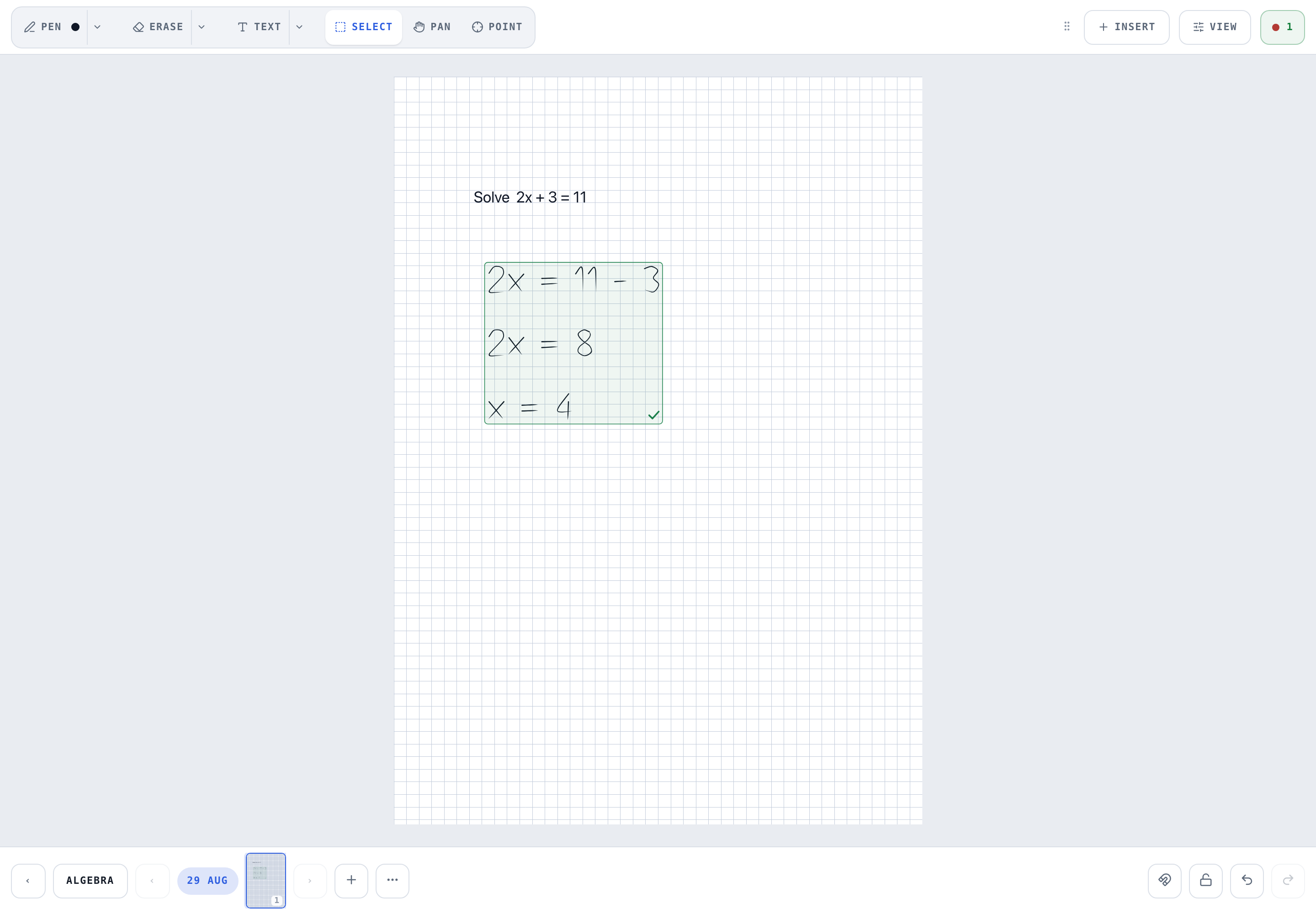
The padlock in the strip stops two-finger zoom and drag for the lesson, so the page cannot drift while a student is writing. Unlock to move about.
- Write on real pages
Pick squared or graph paper for maths, ruled for languages. Tap Chapter at the start of each lesson so the date names it.
- Set the homework before you hang up
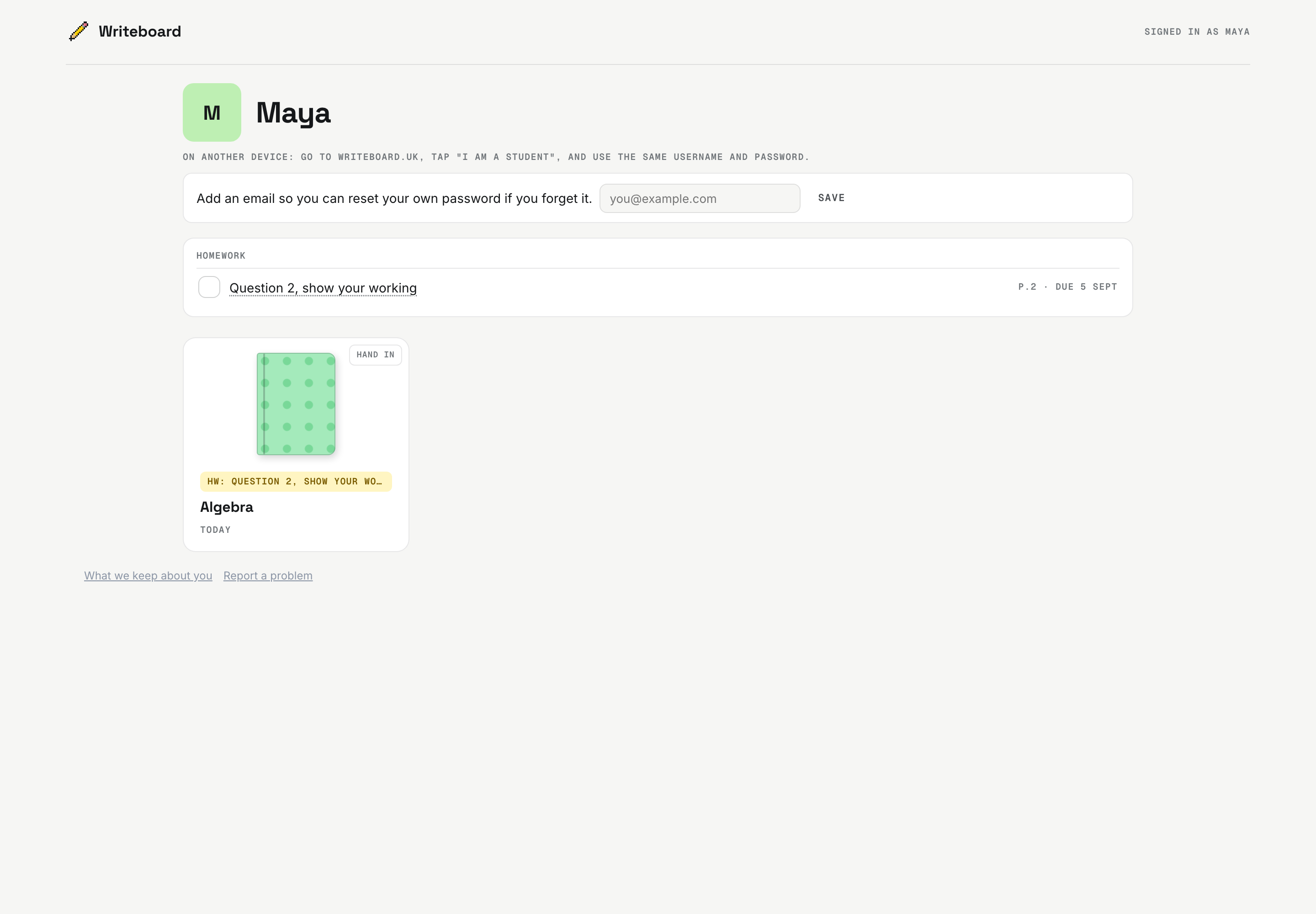
Draw a box round the question, tap Homework, add the next page too, set the date. The student's shelf shows the parts and opens on the exact spot.
What goes wrong, and the fix
| Problem | Cause | Fix |
|---|---|---|
| The page drifts while I write | Two-finger gestures from a resting hand | Lock the view with the padlock; set finger to pan or off |
| Stray marks under my palm | Palm treated as a finger that writes | Finger to pan; Writeboard ignores the palm while the pencil is down |
| The call drops when I reload | Call and board in the same tab | Call on a phone or laptop; the iPad is only the board |
| I lose last week's work | Infinite canvas or a new board each lesson | Books with a chapter per lesson; tap Chapter, it names itself |
| The student says they could not find the homework | Homework typed into a chat | Draw a box round the question on the page and set it; it opens there on their shelf |
What to tell the student
Send the invite link or read out the six-character code. They pick a username and password; no email is needed. On a laptop they write with the mouse; on an iPad with a finger or their own pencil. Tell them the homework will be on their shelf with a due date and a Hand in button, and that a parent can have a read-only link.
Questions tutors ask
Can I tutor online with just an iPad?
Yes. The iPad runs the whiteboard and a phone runs the call. Writeboard installs from Safari as a full-screen app and works offline for the parts of the lesson that do not need the other person.
Does palm rejection work in a browser?
In Writeboard, yes. The board distinguishes the pencil from touch, so a resting palm does not draw; a finger either writes or pans, which you choose.
Which iPad should a tutor buy?
The cheapest one that takes a pencil. The 10th generation iPad with a first-generation pencil is enough; a larger screen helps if you also want the call on the same device.
Can my student use a finger or a mouse?
Yes. A student on a laptop draws with a mouse or trackpad; on a phone with a finger. The ink syncs the same way; it is just less tidy, which is why the tutor usually does the writing and the student does the answering.